
This is an old revision of the document!
Table of Contents
— Marc Verhaar 2021/12/19 13:46
SSH tunneling:
Local portforwarding:
Using the ssh server as a jumphost for a service in the ssh server network:
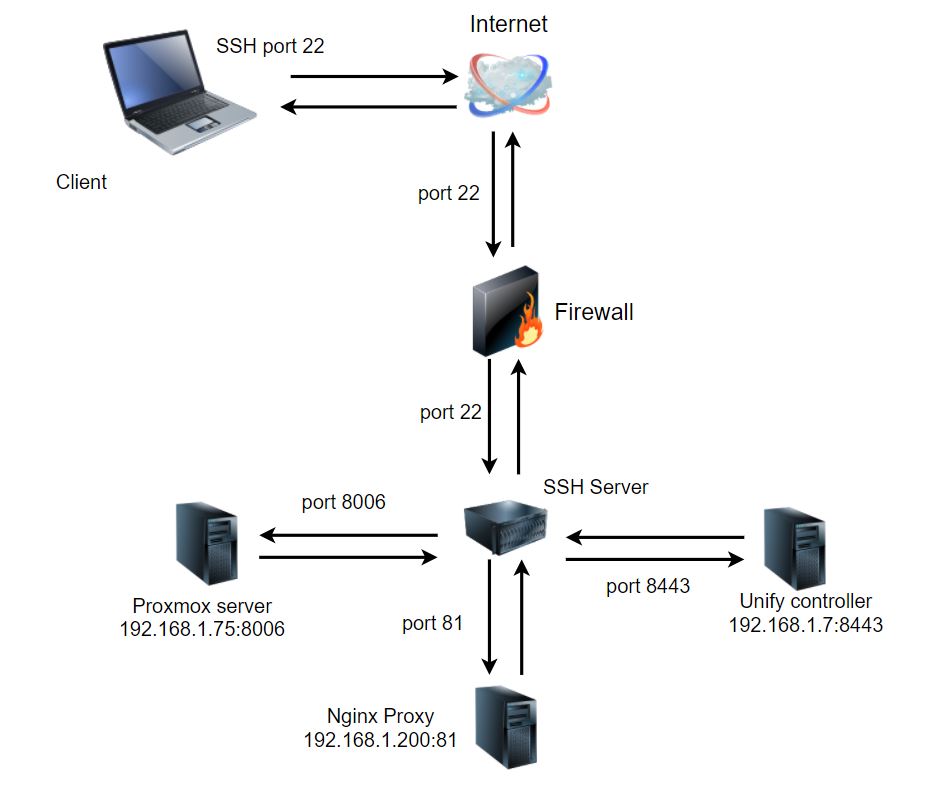
We can establish these connections like this:
ssh user@server -L 12345:192.168.1.200:81
This will open an SSH session and as long as it runs the tunnel is active!
You can now open a local browser to http://localhost:12345 and it will open 192.168.1.200:81 on the network where the SSH server is located.
Remote portforwarding:
Dynamic portforwarding with SOCKS proxy:
Install ''proxychains:''
sudo apt install proxychains -y
Edit /etc/proxychains.conf on **client** and in the **ProxyList** section set the port:
[ProxyList]
# add proxy here ...
# meanwile
# defaults set to "tor"
socks5  127.0.0.1 9050
Use socks5 which supports encrypted tunnels and UDP protocol!
Now we can set up the SSH tunnel:
ssh user@server -D 9050
This will open an SSH session and as long as it runs the tunnel is active!
We can now use the SSH tunnel with any application that supports SOCKS:
- Webbrowsers (configure proxysettings)
- RDP (configure proxysetting or use
proxychains rdesktop 192.168.1.x) - VNC
- …
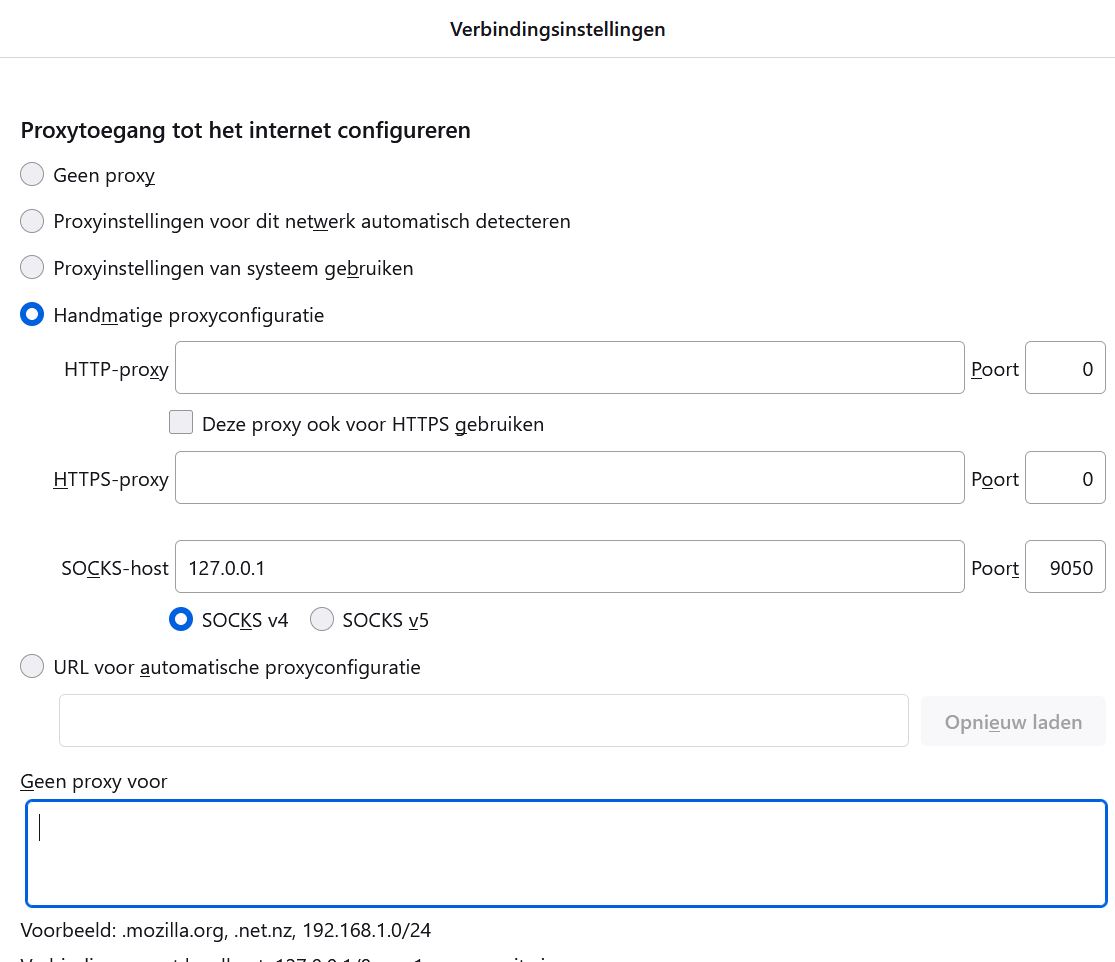
Webbrowsers do support this but we need to configure the proxy configuration according to the tunnel:
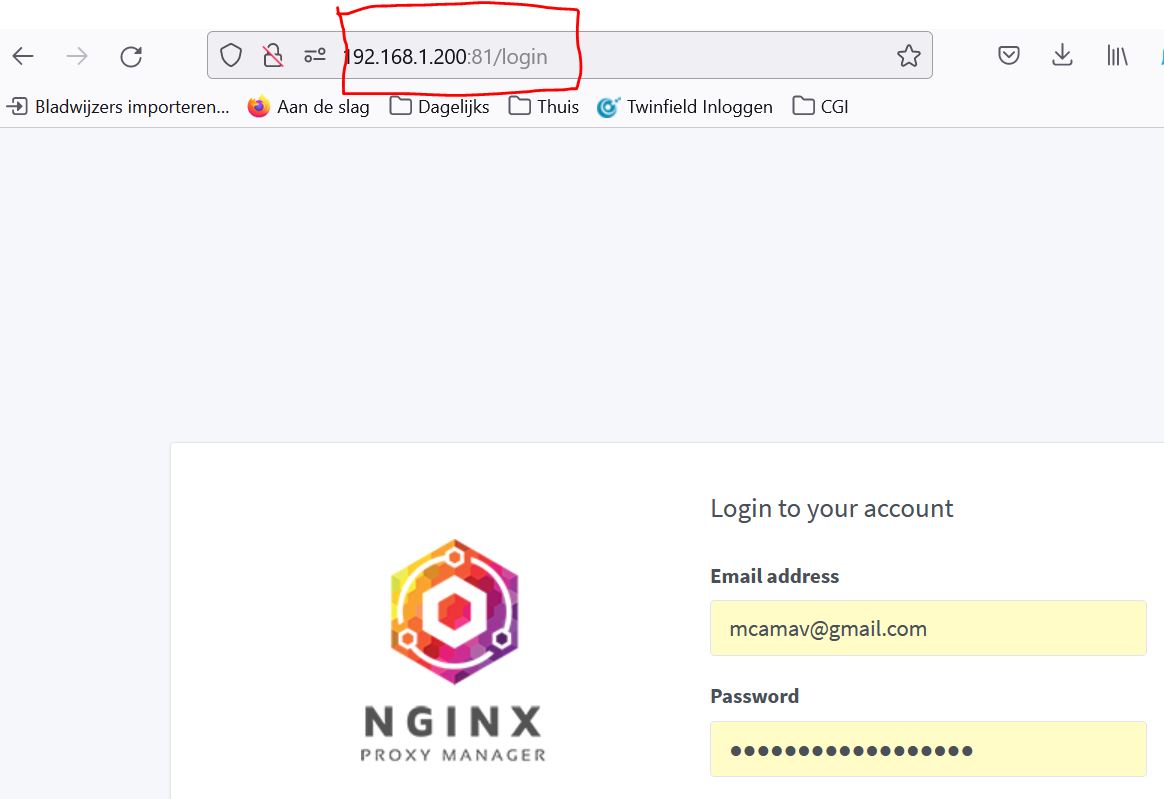
We now can connect directly to the servers in the SSH Server network:
Using SSH Jumphost:
We can use an SSH Jumphost to connect to an SSH server:
ssh user@server -J user@jumphost
example:
ssh root@192.168.1.70 -J marcv@verhaar.cc
Using multiple jumphosts:
ssh user@destination -J user@jumphost1 user@jumphost2
: using ssh config file for jumphosts…