
This is an old revision of the document!
Table of Contents
— Marc Verhaar 2021/11/02 19:08
 ====== Uitreksel RHCSA 8 ======
File Maintenance Commands:
| Command | Function | Example |
|---|---|---|
| cp | Copy file | cp file1 file2 |
| rm | Remove file | rm file2 |
| mv | Move file (also rename!) | mv file /path/newfile |
| mkdir | Make directory | mkdir newdir |
| rmdir | Remove directory (must be empty!) | rm newdir |
| rm -rf | Remove file or directory | rm -rf /bin |
| chgrp | Change group of file or directory | '' sudo chgrp root file 1'' |
| chown | Change ownership of file or directory | chown user file |
chown user:group file |
||
chown -R user: dir |
Soft link vs Hard link:
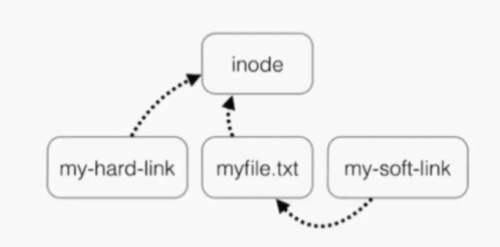
Inode:
- index position which points to data (file/directory) on drive
- Every file has an inode (Index node)
- Contains all file information except file contents and name:
- Inode number
- File size
- Owner information
- Permissions
- File type
- Number of links
- etc
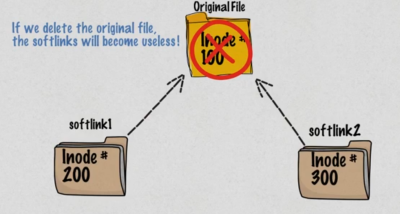
Soft link:
- Same as windows shortcut
- Can span over disks/partitions/lvms
- Aka Symbolic link
- Different inode number
- Smaller file size
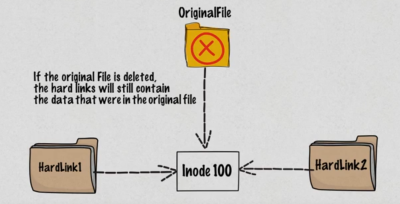
Hard link:
- Different name of the same file
- Same file size
- Same inode number
- Can not span over disks/partitions/lvms (i.e. hard links only work within same partition)
This means:
- removing the target will render the soft link useless (cat softlink will give an error)
- removing the target will not remove a hard link (cat hardlink will show content of original file)
| Command | Function | Example |
|---|---|---|
| ln | create a hardlink | ln target linkname |
| ln -s | create a soft link | ln -s target linkname |
| ls -i | show files with inode numbers | ls -li |
Example:
''''
touch original
echo “some stuff” > original
ln -s original softlink
ln original hardlink
ls -li
46271969 -rw-rw-r– 2 marcv marcv 24 Nov 2 20:54 hardlink
46271969 -rw-rw-r– 2 marcv marcv 24 Nov 2 20:54 original
46271970 lrwxrwxrwx 1 marcv marcv 8 Nov 2 20:54 softlink → original
rm original
ls -l
-rw-rw-r– 1 marcv marcv 24 Nov 2 20:43 hardlink
lrwxrwxrwx 1 marcv marcv 8 Nov 2 20:44 softlink → original (broken link)
''''
Redirecting:
Standard redirecting:
There are 3 redirects in Linux:
- stdin: standard input has file descriptor number as 0 (keyboard, mouse, ..?)
- stdout: standard output has file descriptor number as 1 (monitor)
- stderr: standard error has file descriptor number as 2 (monitor)
We can redirect these output using >, <, and 2>:
| Command | Redirects |
|---|---|
ls -l > output | output to “output” (not overrides output to stdout which is terminal) |
ls -l » output | same but appends to existing content instead of overwriting |
| '' cat < file'' | redirect content of file to cat (quite useless as cat file will do the same) |
mail user@here.nl < content | using mailprogram, send content |
ls -l /root 2> errorfile | redirect errors to errorfile (valid output to stdout) |
Using redirect in combination with EOF:
Assign multi-line string to a shell variable:
sql=$(cat <<EOF
SELECT foo, bar FROM db
WHERE foo='baz'
EOF
)
The $sql variable now holds the new-line characters too. You can verify with echo -e “$sql”
Pass multi-line string to a file in Bash:
cat <<EOF > print.sh
#!/bin/bash
echo \$PWD
echo $PWD
EOF
The print.sh file now contains:
#!/bin/bash
echo $PWD
echo /home/user
Pass multi-line string to a pipe in Bash:
cat <<EOF | grep 'b' | tee b.txt
foo
bar
baz
EOF
The b.txt file contains bar and baz lines. The same output is printed to stdout.
Pipes (|):
- A pipe is used by the shell to connect the output of one command directly to the input of another command.
- The symbol is the vertical bar (|)
- Syntax: command1 [arguments] | command2 [arguments] | command3 [arguments] etc
| command | what it does |
|---|---|
ls -ltr | less | feed less with output of ls -ltr |
find . *file | grep name | find files and grep in filenames(!) |
cat file* | grep string | cat files and grep inside content(!) This can also be done using grep -R string ./* |
Getting help:
- whatis command
- command –help
- man command
- help command
File editors:
- vi
- ed
- ex
- emacs
- pico
- vim
For RHCSA you'll be using vi because it's present on almost all *nix systems.
Common keys in command mode:
- i for insert
- a for append (A for append at end of line)
- o for new line edit mode
- r for replace
- y for yank (copy)
- d for delete / cut
- p for paste
- q for quit
- h for left
- j for down
- k for up
- l for right
- dd: cut line
- dw: cut word
- 30dd: cut 30 lines
- u: undo
- 3dw: cut 3 words
- x: cut character
- 3x: ?
- r-character: replace current character with new
User account management:
commands:
- useradd: add user
- groupadd: add group
- userdel: delete user
- groupdel: delete group
- usermod: modify user
- chage: change password change requirements (per user)
files:
- /etc/passwd: contains user information
- /etc/group: contains group information
- /etc/shadow: stores actual password in encrypted format and password age (chage)
- /etc/login.defs: contains system-wide default password policy, also contains UID policy, umask and other stuff
Some examples:
| Command | What it does |
|---|---|
| useradd -d /homedir -g group username | add user, assign to group and define homedir |
| usermod -a -G wheel user | add user to additional group wheel |
| useradd -r nonuser | create system account |
| useradd -s /bin/zsh user | create user and define shell |
| chage -m 5 user | user can change password in 5 days |
| chage -M 90 -W 70 user | user must change password every 90 days and gets warning 7 days prior |
| chage -I 7 user | account will be disabled 7 days after password expires |
Switch users and sudo access:
Commands:
- sudo su - username: switch to username
- sudo command: execute command as root
- visudo: edit /etc/sudoers which defines what users can elevate which privileges
Log monitoring:
Log directory is /var/log/ (unless specified other per application)
Accurate system time is critical!
RedHat 8 uses NTP for time synchronization.
- boot.log (overwritten on each (re)boot)
- chrony (NTP)
- cron
- maillog (sendmail log)
- secure: records login attempts (= on RedHat, auth.log on Debian)
- messages (no 1 for troublesshooting, syslog on Debian)
- httpd
- dmesg (on hardware, also to be viewed using command
dmesg) - firewalld
- etc
Root privilegs:
Become root using:
su -
The minus ensures that correct environment (variables) is loaded so don't use su without it.
If configured properly (sudo is installed and user is member of group wheel), you can also do:
sudo su -