This is an old revision of the document!
Table of Contents
Docker:
Docker Basics:
| Command | Function | Additional information |
|---|---|---|
docker run name | creates and starts a container based on image “name” | docker run is actually 2 commands: docker create + docker start |
docker run busybox | creates(!) and starts a container based on busybox image | Since no additional command is given it will close immediately |
docker run busybox ls -l | creates and starts container and executes ls -l command | |
docker ps | show active containers and info about image, id, name, ports etc | |
docker ps -a | show all containers | also shows containers that are not active/running |
docker create hello-world | creates a container (without starting) | outputs a stringID which can be used to start container |
docker start ContainerID | starts the container ContainerID (if created) | no output because container starts, executes command and exits without attaching to it |
docker start -a ContainerID | starts the container ContainerID if created | the -a is needed to get output from container (attach) |
docker logs ContainerID | shows the output from the previous start commands | this is not the same as restarting the container and attaching to it! if a container was started multiple times, this option (logs) will show output from all runs |
docker system prune | removes all stopped containers, unused networks, unused images and all build cache | preceeded by a warning, restarting a container will download the corresponding image from dockerhub |
docker stop ContainerID | stops the running process running inside the container from the outside | SIGTERM is used as system call. If the container has not stopped within 10 seconds, the SIGKILL system call is issued automatically! |
docker kill ContainerID | stops the running process running inside the container from the outside | SIGKILL is used as system call |
docker exec -it ContainerID ls -l | Execute ls -l inside running container | docker exec can be used to execute a (2nd) command inside a running container. The -i parameter links your input to the STDIN of the container, the -t parameter is for formatting the output |
docker exec -it ContainerID sh | Get a shell inside running container | |
docker run -it busybox sh | create and start(!) container based on busybox and get a shell inside | Both -it and sh are needed to make sure the container stays active! |
docker run -itd busybox sh | create and start container based on busybox and detach | The extra -d paramter detaches the container |
| The example given directly above is unusual because of the simple fact that you normally start a container for a particular task. If you then need to get into the container (e.g. for troubleshooting) you can attach to it using the docker exec it ID sh command which starts a second program | ||
docker build (-t tag) . | Based on Dockerfile | Structure:# Use an existing image as base; FROM alpine # Download and install dependencies RUN apk add --update redis RUN apk add --update gcc RUN npm install # Specify what must start upon starting the container CMD ["redis-server", "npm", "start"] |
Docker Images:
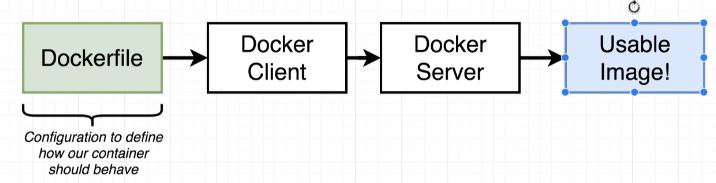
By creating, starting or running a container we use an image that we download. These images were created by others but we can also create them ourselves:
Dockerfile:
Creating a Dockerfile flow:
- Specify a base image
- Run some commands to install additional programs
- Specify a commands to run on container startup
The docker file must be named “Dockerfile” exactly spelled like this.
The Dockerfile will typically have at least 3 instructions:
- FROM: This tells docker which image to use as base. It is downloaded from a repository, often dockerhub. If you don't specify a version, docker will assume you want to download latest.
- RUN: This tells docker which commands to execute inside the container, usually used to install software
- CMD: Tells docker which command to run after starting the built container, this will be the primary goal for it
Example of Dockerfile:
# Use an existing image as base;
FROM alpine

# Download and install dependencies
RUN apk add --update redis
RUN apk add --update gcc
RUN npm install

# Specify what must start upon starting the container
CMD ["redis-server", "npm"]
The instructions FROM, RUN, and CMD are the most common but there are a lot more.
Each of these instructions accept arguments that determine the output.
Building the image using the Dockerfile:
From the directory where Dockerfile is located run “docker build .”:
docker build .

Sending build context to Docker daemon  2.048kB
Step 1/3 : FROM alpine
latest: Pulling from library/alpine
59bf1c3509f3: Pull complete
Digest: sha256:21a3deaa0d32a8057914f36584b5288d2e5ecc984380bc0118285c70fa8c9300
Status: Downloaded newer image for alpine:latest
 ---> c059bfaa849c
Step 2/3 : RUN apk add --update redis
 ---> Running in a189f27e7b8a
fetch https://dl-cdn.alpinelinux.org/alpine/v3.15/main/x86_64/APKINDEX.tar.gz
fetch https://dl-cdn.alpinelinux.org/alpine/v3.15/community/x86_64/APKINDEX.tar.gz
(1/1) Installing redis (6.2.6-r0)
Executing redis-6.2.6-r0.pre-install
Executing redis-6.2.6-r0.post-install
Executing busybox-1.34.1-r3.trigger
OK: 8 MiB in 15 packages
Removing intermediate container a189f27e7b8a
 ---> f772194ce5d3
Step 3/3 : CMD ["redis-server"]
 ---> Running in 392675ae6f93
Removing intermediate container 392675ae6f93
 ---> 194ce2b7fc30
Successfully built 194ce2b7fc30
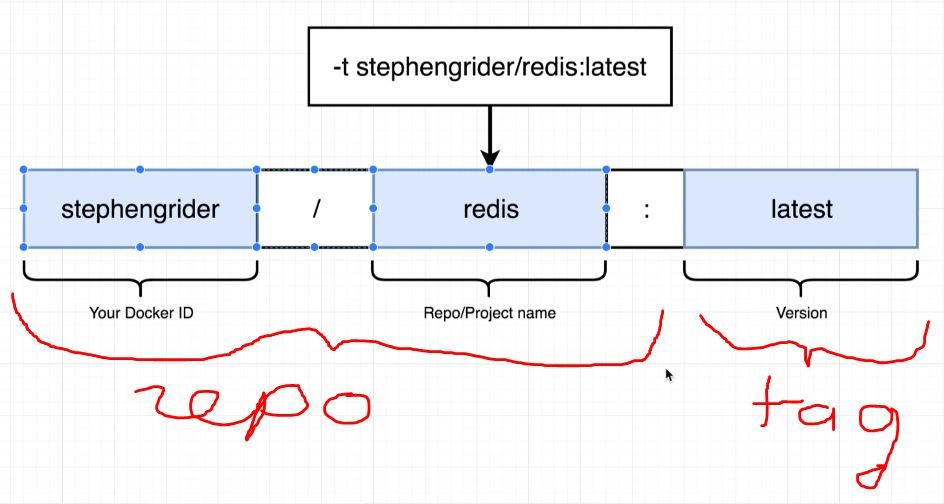
We can also tag the image so it's easier to use:
docker build -t dockerID/projectname:version .

docker build -t nomind69/redis:latest .
Explaining the build proces:
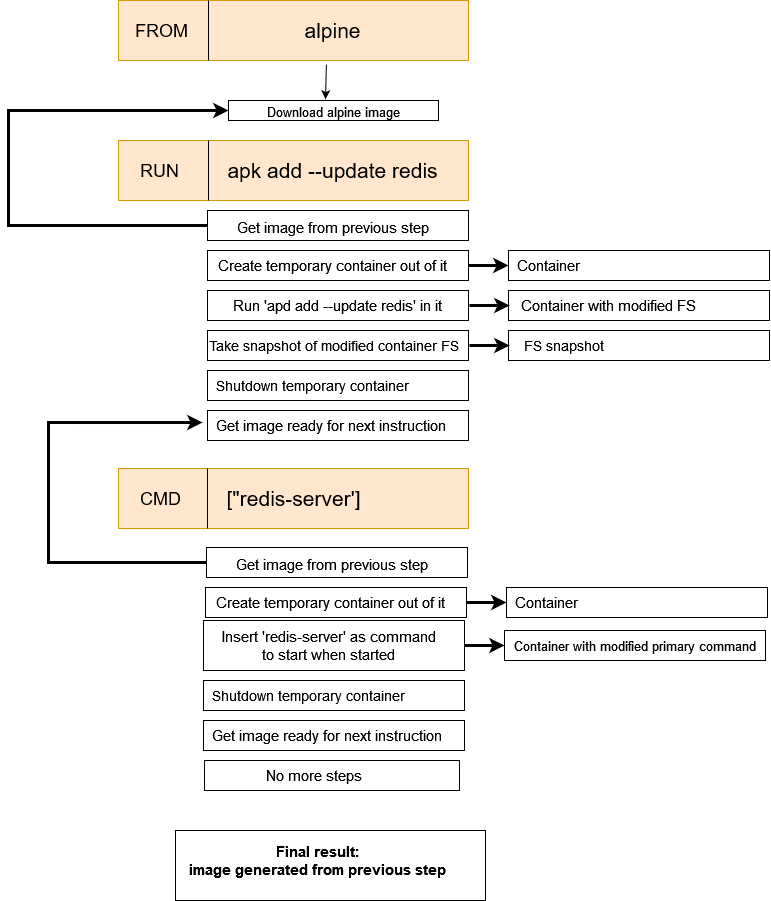
Looking at the output building the container, notice that new temporary containers are created which are at the next stage removed (intermediate containers). From each construction we get a new image!
 (Click for large)
Starting the container we just built:
docker run 194ce2b7fc30

1:C 15 Dec 2021 13:00:28.308 # oO0OoO0OoO0Oo Redis is starting oO0OoO0OoO0Oo
1:C 15 Dec 2021 13:00:28.308 # Redis version=6.2.6, bits=64, commit=b39e1241, modified=0, pid=1, just started
1:C 15 Dec 2021 13:00:28.308 # Warning: no config file specified, using the default config. In order to specify a config file use redis-server /path/to/redis.conf
1:M 15 Dec 2021 13:00:28.310 * Increased maximum number of open files to 10032 (it was originally set to 1024).
1:M 15 Dec 2021 13:00:28.310 * monotonic clock: POSIX clock_gettime
1:M 15 Dec 2021 13:00:28.311 * Running mode=standalone, port=6379.
1:M 15 Dec 2021 13:00:28.311 # Server initialized
1:M 15 Dec 2021 13:00:28.311 # WARNING overcommit_memory is set to 0! Background save may fail under low memory condition. To fix this issue add 'vm.overcommit_memory = 1' to /etc/sysctl.conf and then reboot or run the command 'sysctl vm.overcommit_memory=1' for this to take effect.
1:M 15 Dec 2021 13:00:28.312 * Ready to accept connections
Building an image from a running container:
The process of building a container can be seen as:
- Downloading an image
- Changing the image
- Build a new image
Keep in mind that a container is nothing more than an image that is running and an image is nothing more than a snapshot of a running container!
It is also possible to build a new image from a running container:
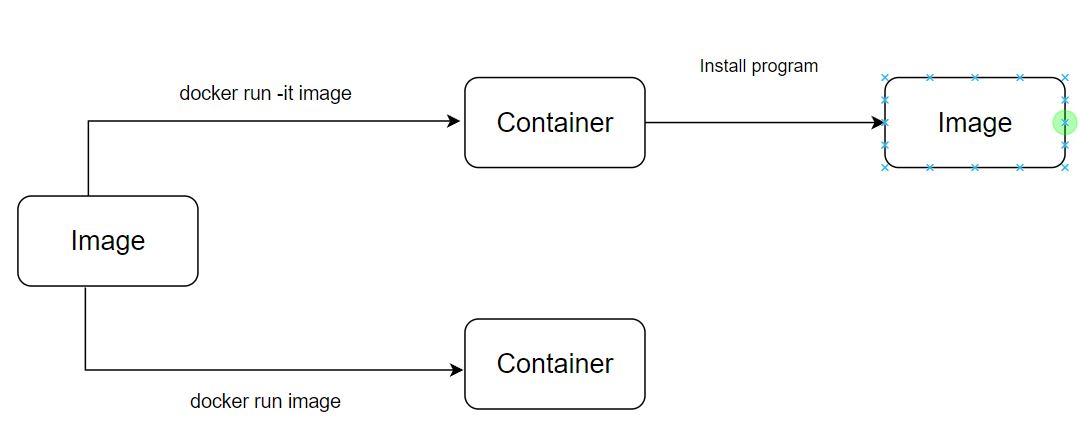
docker run -it alpine sh
apk add --update redis (from inside running container)
Open another shell on the host:
docker ps (getting ID)
docker commit -C 'CMD ["redis-server"]' ID
The ouput will be sha256: string. The string is the ID of the newly created image
We can now start a container based on this image: docker run string
Additional Dockerfile instructions:
# Define baseimage
FROM node:alpine #this is an alpine version (stripped) from the node repository!

# Define working directory inside container:
WORKDIR /usr/app #will be created inside container(!) if non-existing!

### Instructions
# Copy files needed by the container in the container fs:
COPY ./files_that_will_not_change ./
RUN command1
RUN command2

COPY . .

# OR

COPY $(PWD) .

# copy everything from working directory (local) to working directory (container); defined as /usr/app!
# Because we chose to copy the non-changing files before the RUN commands, the docker build will execute faster as
# it does not need to include the RUN commands if we change other files

# Map networkports to containerports: Only needed for incoming traffic!
# Cannot be done from the Dockerfile; needs to be defined when starting the container:

# docker run -p 8080:80 imageID
# port 8080 is on the host, port 80 is inside container, make sure container is listening.


CMD ["prog1", "prog2"]
We can also define another Dockerfile to use for building a container:
docker build -f Dockerfile.dev
Another example of then starting the container:
docker run -p 3000:3000 -v /app/node_modules -v $(pwd):/app ContainerID
In this example:
- docker run: run container
- -p 3000:3000: map local port 3000 to containerport 3000
- -v /app/node_modules: the /app/node_modules directory in the container is “carved in stone”/ do not change
- -v $(pwd):/app: copy all files from working dir inside container directory “/app” EXCEPT /app/node_modules!!!!
The last parameter (-v $(pwd):/app is basically a volume mapping!
Docker Compose:
Docker compose is an additional cli tool (just like docker) that is used to make it easier to:
- Start up multiple docker containers at the same time
- Automate some of the long-winded arguments passing to docker run
- Ease network setup and connections
- ..
With docker compose we bundle the arguments from the docker cli tool into a docker-compose.yml file.
Structure:
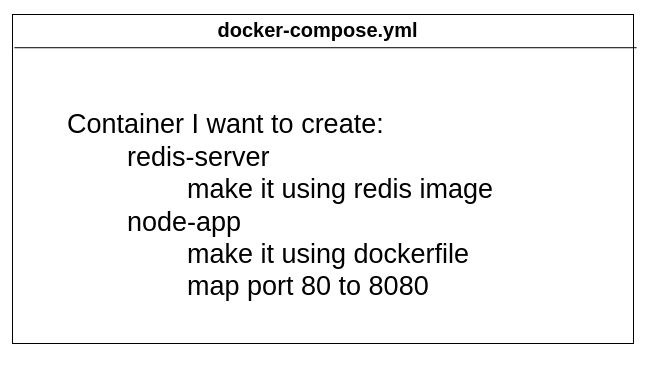
Example:
version: '3'                                     # mandatory! Version is version of docker-compose.yml!
services:                                        # which containers to make
  redis-server:                                  # name of 1st container
    restart: on-failure                          # see restart policies down in page
    image: 'redis'                               # image to be used
  node-app:                                      # name of 2nd container
    restart: always                              # see restart policies down in page
    build: .                                     # build from current directory (using Dockerfile!)
    ports:                                       # ports to map
      - "8080:80"                                # map port 8080 on host to port 80 inside container
    volumes:
      - /app/node_volumes                        # directory "/app/node/modules" inside(!) volume does not change!
      - $(pwd):/app                              # copy all from local working directory to app directory inside
                                                 # container (except /app/node_volumes!)
Networking:
By defining multiple services (containers) in a docker-compose.yml file, an internal network is automatically created on which the containers can communicate!!!
The containers can communicate by referring to the the servicename defined in the docker-compose.yml file!
This needs to be configured from the application layer. Normally you would point to an endpoint using a url (https:server.example.com) or a FQDN or dns name, etc. Now you can use the service name.
Starting containers using docker-compose:
To start up the services/containers defined in the docker-compose.yml file there are 2 base commands:
| Command | Function |
|---|---|
docker-compose up | start containers without rebuilding containers |
docker-compose up --build | start containers including rebuilds |
Some additional commands are:
| Command | Function |
|---|---|
docker-compose up -d | start containers without rebuilding and detach |
docker-compose up --build -d | start containers uncluding rebuilds and detach |
docker-compose up -d --force-recreate | start containers and force recreates |
docker-compose down | stop and remove(!) containers |
docker-compose ps | print status of running container; this will look for docker-compose.yml file to establish which containers you are querying about! |
Handling crashing containers:
To determine if a container has crashed docker makes use of Status Codes; a status code of 0 means the command exited in a normal way. Any other status code means the command exited because something went wrong.
Inside our docker-compose.yml file we can define restart policies to determine what should happen if a container stops or crashes:
| Restart Policies | |
|---|---|
| “no” | Never attempt to restart this container if it stops or crashes (default when undefined)Notice the quotes needed because of interpreatation by yaml! |
| always | If this container stops for any reason always attempt to restart it |
| on-failure | Only restart if the container stops with an error code (>0) |
| ** unless-stopped** | Always restart unless we forcibly stop it |
Updating a docker-compose container:
#!/bin/bash
docker-compose pull
docker-compose up -d --remove-orphans
yes | docker image prune
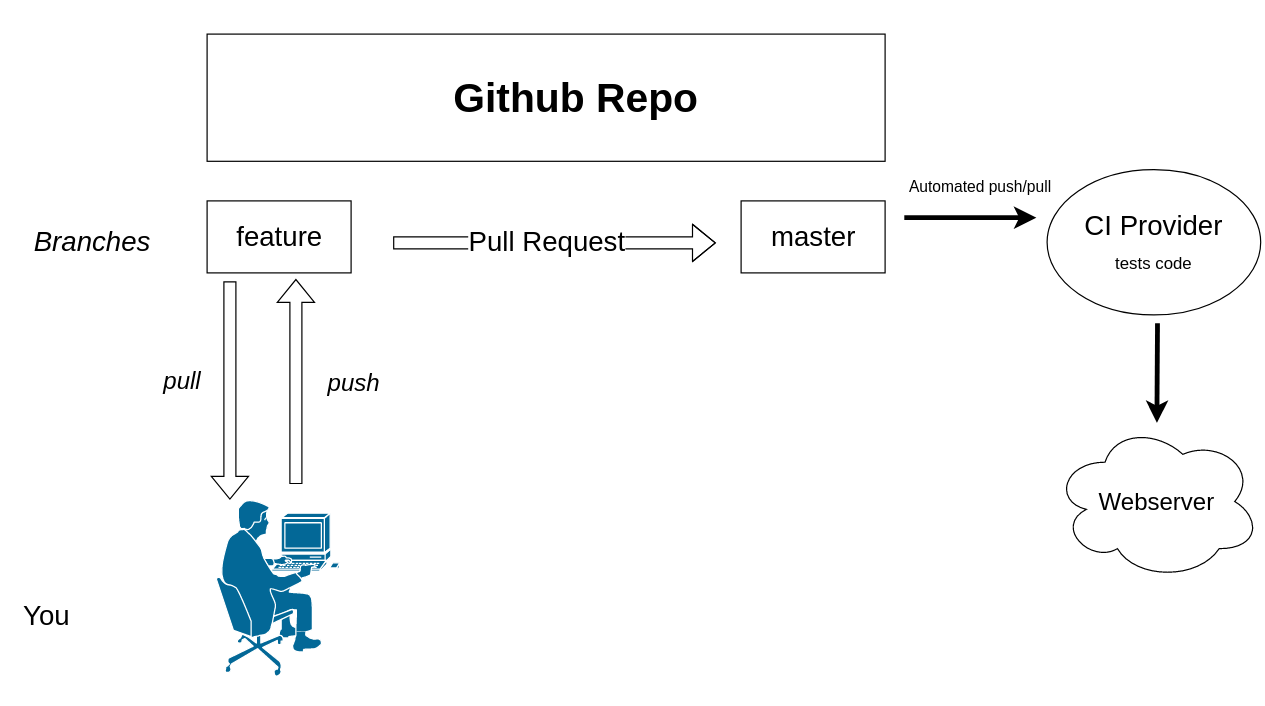
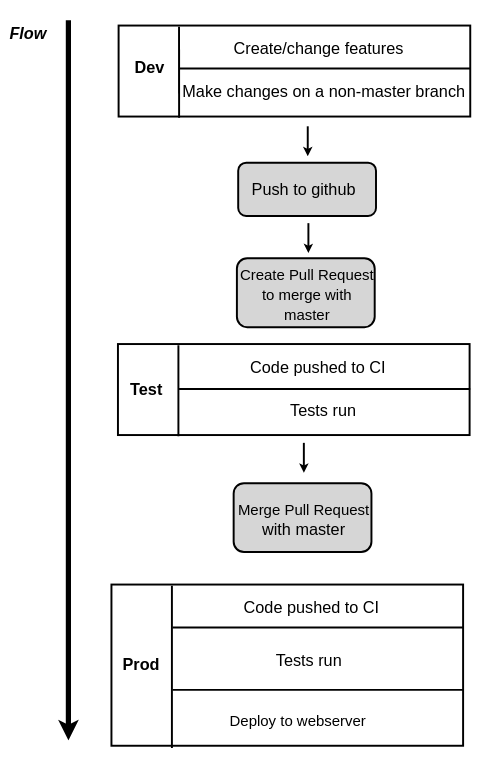
Github CI/CD: