Table of Contents
— Marc Verhaar 2023/02/21 10:26
AWS Certified Solutions Architect
 AWS has hundreds of whitepapers available!
For this exam the most important whitepaper it this one!
The default region is US-East-1. This is also the region where new services will be deployed first! Also when creating services like EC2 or S3, these are created within the region that you are in at the moment of creating!
Well-Architected Framework
There are 6 pillars of the well-architected framework:
- Operational Excellence: running and monitoring systems to deliver business value, and continually improving processes and procedures.
- Performance Efficiency: using IT and computing resources efficiently
- Security: protecting information and systems
- Cost Optimization: avoiding unnecessary costs
- Reliability: ensuring a workload performs its intended function correctly and consistently when it's expected to
- Sustainability: minimizing the environmental impacts of running cloud workloads
Availability Zones and Regions
In this section:
- AWS Global Infrastructure
- Availability Zones
- Data Centers
- Regions
- Edge Locations
- The AWS Management Console
At the moment there are 24 regions and 77 availability zones.
A Region is a geographical location which consists of 2 or more Availability Zones(AZs).
An Availability Zone is a data center or multiple data centers located close (100km or less) together, each with redundant power, networking and connectivity.
Edge locations are endpoints for AWS used for caching (CloudFront, Amazon's CDN). More than 215 Edge locations at the moment.
Ownership and Responsibility
Both AWS and the customer have responsibilities using the AWS cloud. These responsibilities are defined in the Shared Responsibility Model:
AWS Responsibilities
AWS is responsible for the Security OF the Cloud:
- SOFTWARE:
- Compute
- Storage
- Database
- Networking
- HARDWARE/AWS GLOBAL INFRASTRUCTURE:
- Regions
- Availability Zones
- Edge Locations
Customer Responsibilities
The Customer is responsible for the Security IN the Cloud:
- Customer Data
- Platform, Applications, Identity & Access Management
- Operating Systems, Network & Firewall Configuration
- Client-Side Encryption & Data Integrity Authentication
- Server_Side Encryption (File System and/or Data)
- Networking Traffic Protection (Encryption, Integrity, Identity)
Ask yourself if you can manage it in the AWS Management Console:
- If you can , you are probably responsible.
- Security Groups, IAM users, Patching EC2 operating systems, patching databases running on EC2, etc
- If not, AWS is likely responsible.
- Management of data centers, security cameras, cabliung, patching RDS OS, etc.
- Encryption is a shared responsibility
Compute, Storage, Databases, and Networking
Compute
- EC2 (Virtual Server)
- Lambda (Serverless compute)
- Elastic Beanstalk (provisioning engine for automating deployments using code)
Storage
- S3 (Simple Storage Service)
- EBS (Elastic Block Store, virtual harddrive)
- EFS (Elastic File Service, storing files centrally)
- FSx
- Storage Gateway
Databases
- RDS (Relational Database Services)
- DynamoDB (Non-relational Database)
- Redshift
Networking
- VPC (Virtual Private Cloud)
- Direct Connect
- Route 53 (DNS)
- API Gateway
- AWS Global Accelerator
Identity Access Management (IAM)
IAM does NOT require region selection! It's management is valid for global access.
IAM Functions
IAM allows you to manage users and their level of access to the AWS console:
- Create users and grant permissions to those users.
- Create groups and roles.
- Control access to AWS resources
IAM Root Account
The root account is the email address you used to sign up for AWS. The root account has full administrative access to AWS. For this reason it is important to secure this account using a strong password and:
- MFA (Multi Factor Authentication)
- Create an admin group for your administrators and assign the appropriate permissions to this group.
- Create user accounts for you administrators
- Add users to the admin group
Controlling Permissions using IAM
We assign permissions using policy documents which are made up of JSON.
{
    "Version": "2012-10-17",
    "Statement": [
        {
            "Effect": "Allow",
            "Action": "*",
            "Resource": "*",
        }
    ]
}
The above example is typical for an admin account: allow everything on everything!
Another interesting policy account is that of the PowerUser which grants access to everything except management of Users and Groups:
{
    "Version": "2012-10-17",
    "Statement": [
        {
            "Effect": "Allow",
            "NotAction": [
                "iam:*",
                "organizations:*",
                "account:*"
            ],
            "Resource": "*"
        },
        {
            "Effect": "Allow",
            "Action": [
                "iam:CreateServiceLinkedRole",
                "iam:DeleteServiceLinkedRole",
                "iam:ListRoles",
                "organizations:DescribeOrganization",
                "account:ListRegions"
            ],
            "Resource": "*"
        }
    ]
}
Policy Documents can be assigned to:
- Groups
- Users
- Roles
You would not assign permissions to users as this becomes hard to manage. Instead assign permissions to a group and add the user to the group. The user then inherits the permissions through the group he is assigned to.
Policy Documents can be managed and created from the IAM console. When creating a policy document you have the option to create a JSON file yourself or use a visual editor as provided by AWS.
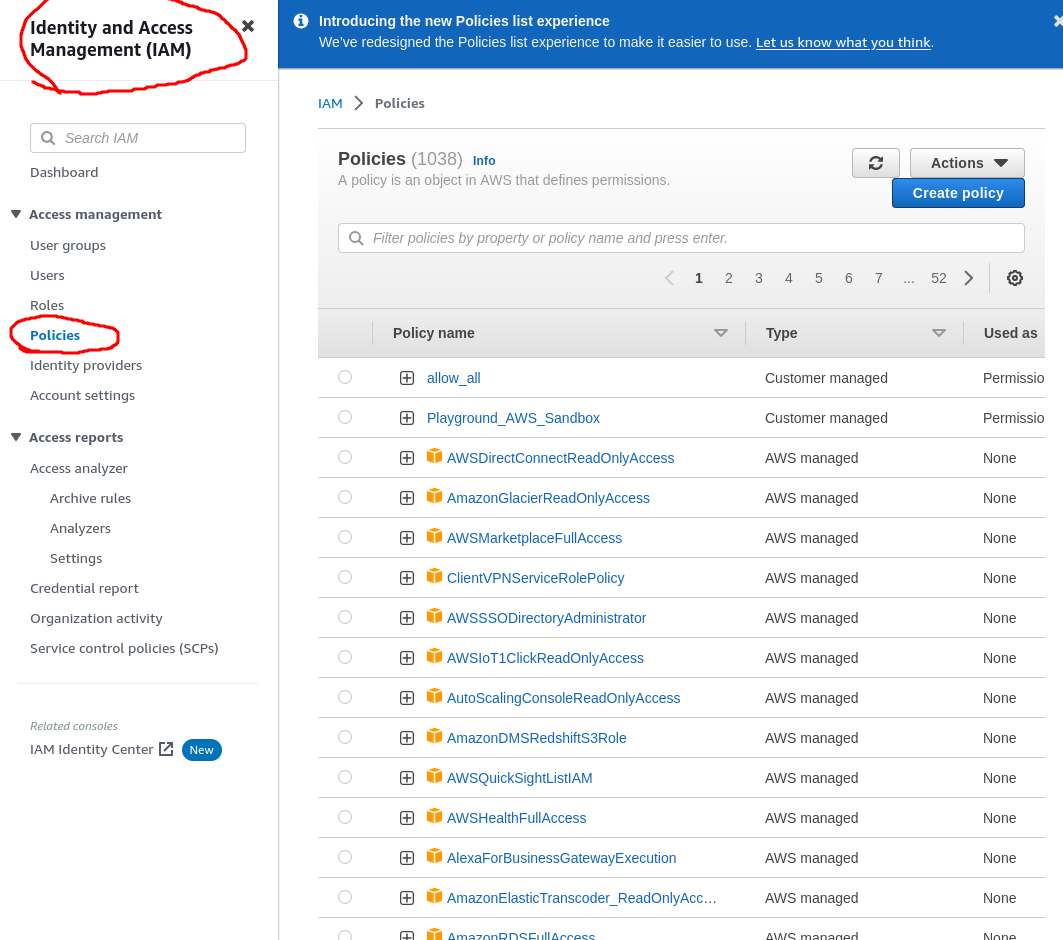
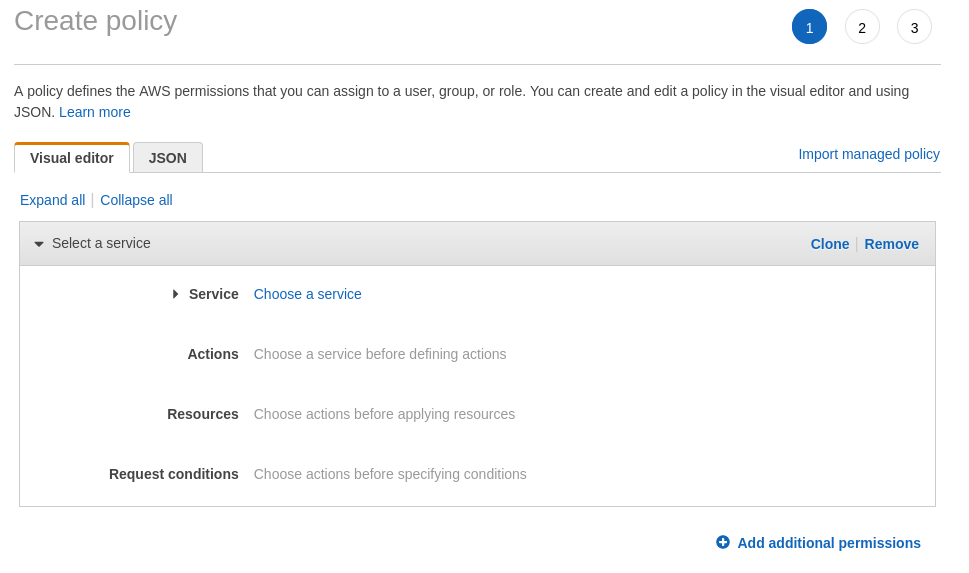
Policy Documents that are already created, either by AWS or yourself, can be inspected as well.
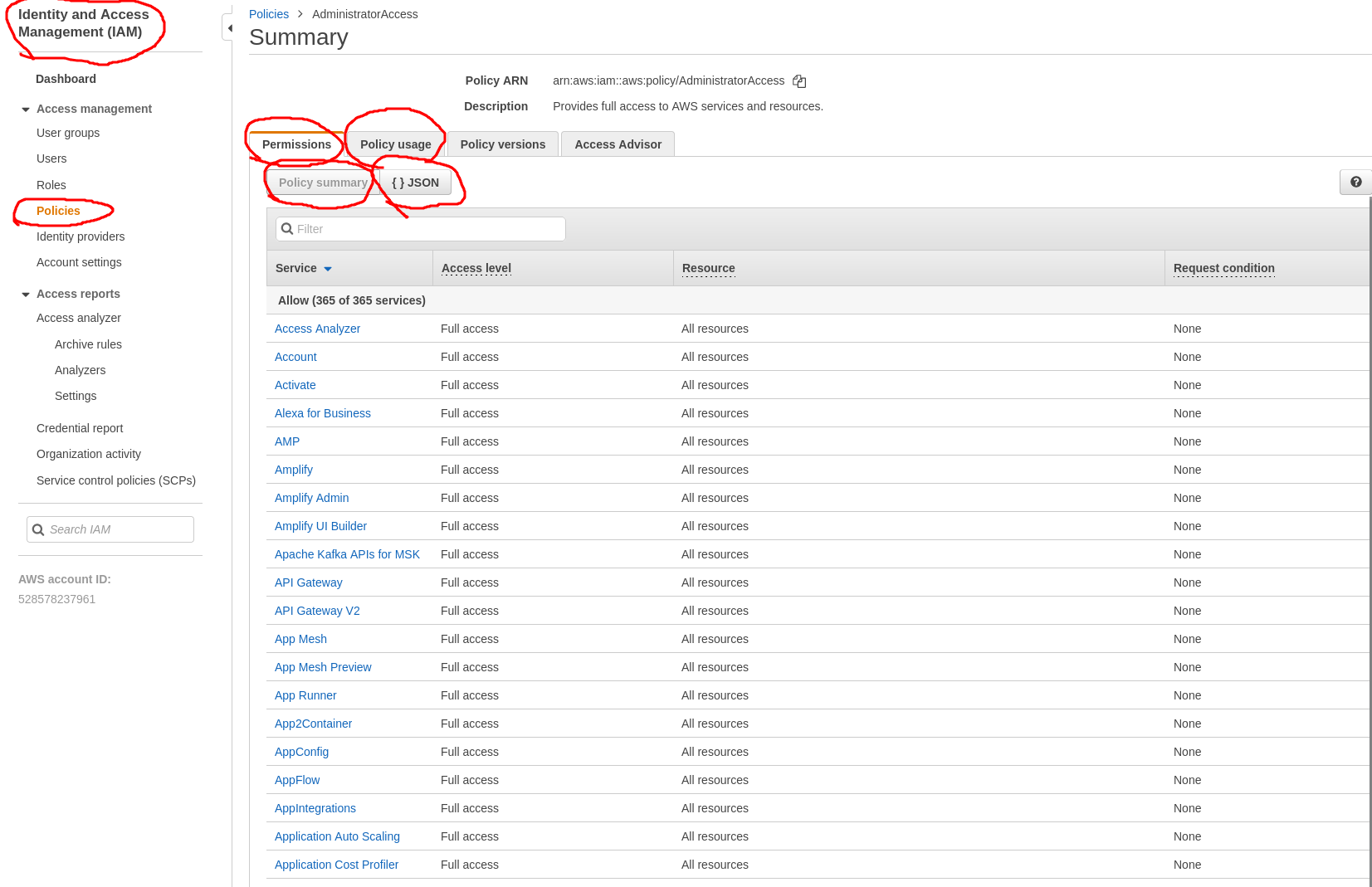
An explicit deny will always override an allow! Reference Documentation: Policies and Permissions in IAM
IAM Building Blocks
- Users: a physical person
- Groups: Functions, such as administrators, developers, etc. Contains users
- Roles: Internal usage within AWS, allows 1 part of AWS to access another part of AWS (i.e. an S3 bucket that needs to be available to an EC2 instance)
Creating a User
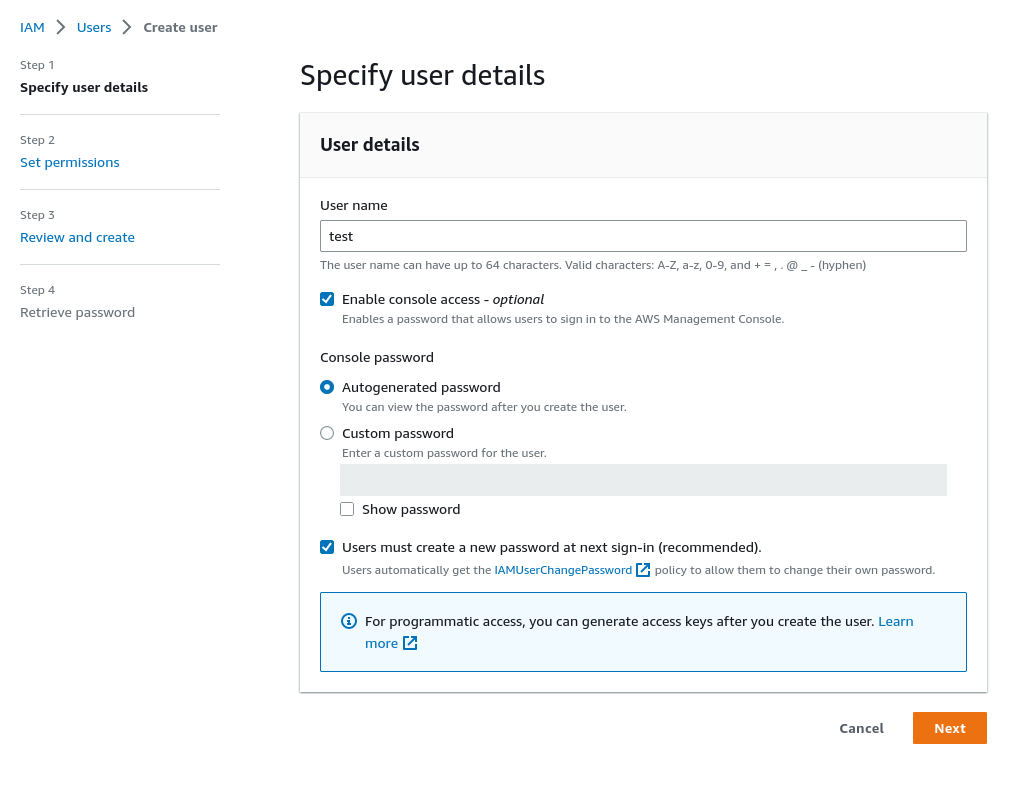
- Using the IAM console, create user
- Fill in user name
- Determine access type:
- Programmatic access will create an access key ID and secret access key for the AWS API, CLI, SDK and other development tools. Apparently this no longer exists as an option! After creating the user you now need to generate access keys by hand
- AWS Management Console: Enables a password that allows users to sign-in to the AWS Management Console. You also need to choose between auto-generated password or custom password, and if the user must create a new password at the 1st sign-in.
- Add user to group (create group if needed)
- Add tags if needed, for example:
- Department - Admins
- Employee_ID - 12345
- etc
- Review and create user
Password Policy
The default password policy can be found on the IAM page under Account settings. It defaults to:
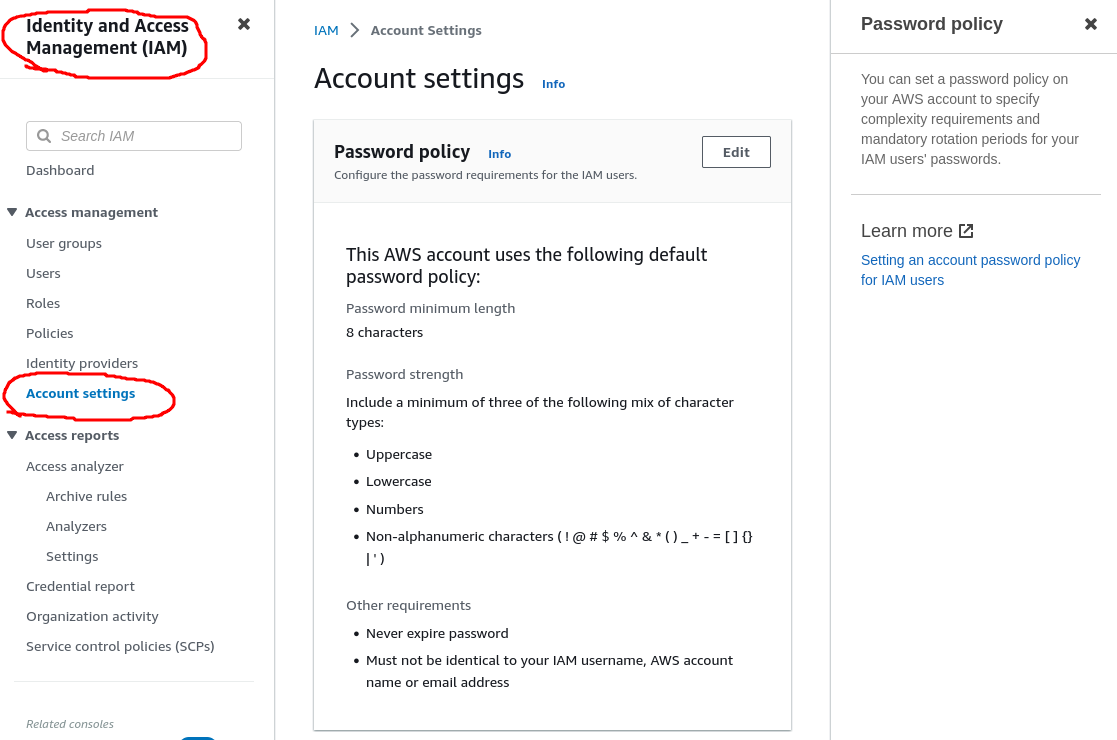
It is possible to change to a custom policy:
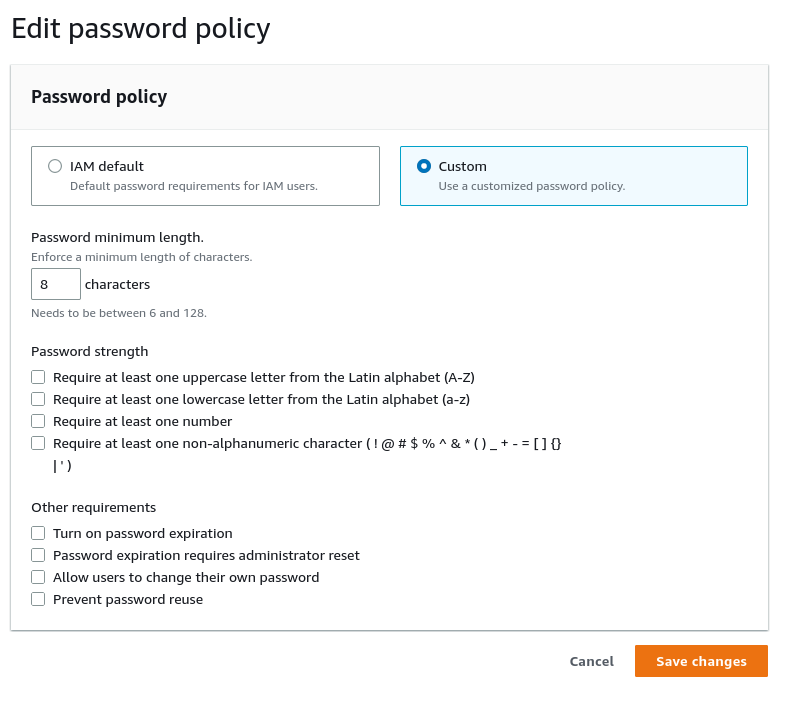
This will only impact new users and existing users changing their passwords
Identity Providers
This provides an option to use SSO (Single Sign On) using:
- SAML; your Windows AD (Active Directory) server. You need to create a trust between your AWS account and Active Directory Federation Services or
- OpenID Connect
Steps to secure your AWS root account
- Enable multi-factor authentication (MFA)on the root account
- Create an admin group for you administrators and assign the appropriate permissions to this group
- Create user accounts for your administrators (and power users)
- Add your users to the admin (and power user) group.
The reason I mention power users here is that they can anything accept IAM. They might be called functional admins.
IAM Exam tips
- IAM is Universal; it does not apply to regions.
- The root account is created on first setting up AWS and it has complete admin access. Secure it as soon as possible and do not use it to log in day to day.
- New Users: no permissions when created
- Assign permission using IAM Policy Documents consisting of JSON (JavaScript Object Notation)
- Assign policy documents to groups when possible
- 1 User == 1 Physical person, do NOT share accounts
- Use the principle of least privilege meaning you assign a user the minimum amount of privileges they need to do their job
- Following the principle of least privilege, a newly created user does NOT have ANY permissions if not assigned by an administrator
- Access Key ID and Secret Access Key can only be viewed upon creation so be sure to store them in a safe place
- Do not use the root account for anything other than managing permissions. Create a user within a admin group to assign permission etc
- The only difference between root user and a user with full admin permissions is that an admin user cannot delete a root user. The root user can delete all users.
- Access key ID and secret keys are not the same as usernames and passwords. They are used for programmatic and API access
- You only get to view keys once!
- Set up password rotations. You can create your own policies
- IAM Federation: Combine existing account with AWS using SAML with Active Directory setting up a trust, or use OpenID
- An explicit deny will always override an allow! Reference Documentation: Policies and Permissions in IAM
S3 (Simple Storage Service)
- S3 provides Object storage in a secure, durable, highly scalable way.
- Upload any file type you can think of to S3
- Examples include photos, videos, code, documents etc
- Can NOT be used to run operating systems or databases
- It allows you to store and retrieve any amount of data from anywhere on the web at a very low cost.
- Amazon S3 is easy to use with a simple web service interface
S3 Basics
- Unlimited Storage“ The total volume of data and number of objects you can store on S3 is unlimited
- Objects up to 5TB in size
- Objects are stored in S3 Buckets (similar to directories)
- S3 buckets need to be uniquely named: all AWS accounts share the S3 namespace so each S3 Bucket name is globally unique
- Example S3 URLS:
- Uploading files; when you upload a file to an S3 bucket you will receive an HTTP 200 code if successful
- An S3 Object consists of:
- Key; the name of the object (picture.jpg)
- Value: The data itself which is made up of a sequence of bytes
- Version ID: Important for storing multiple versions of the same object
- Metadata: Data about the data you are storing (content-type, last-modified, etc)
- S3 is a safe place to store your files; the data is spread across multiple devices and facilities to ensure availability and ** durability**
- Availability: 99.95% - 99.99% service availability, depending on the S3 tier
- Durability: 99.999999999% (9 decimal places) durability for data stored in S3 (meaning data will be stored safely)

S3 Characteristics
- Tiered Storage: S3 offers a range of storage classes designed for different use cases
- Lifecycle Management: Define rules to automatically transition objects to a cheaper storage tier or delete objects that are no longer required after a set period of time
- Versioning: with versioning, all versions of an object are stored and can be retrieved, including deleted objects
- Securing your data:
- Server-Side Encryption: You can set default encryption on a bucket to encrypt all new objects when they are stored in the bucket
- Access Control Lists (ACLs): define which AWS accounts or groups are granted access AND the type of access. You can attach S3 ACLs only to individual objects within a bucket!
- Bucket Policies: S3 bucket policies specify what actions are allowed or denied, e.g. allow user Alice to PUT but not DELETE objects in the bucket. These buckets are (like IAM policies) written in JSON and attached to buckets. They function on the whole bucket! For finer grained permissions you use the ACLs
- Strong Read-After-Write Consistency:
- After a successful write of a new object (PUT) or an overwrite of an existing object, any subsequent read request immediately receives the latest version of the object
- Strong consistency for list operations, so after a write you can immediately perform a listing of the objects in a bucket with all changes reflected
Object Policies vs ACLs
Object policies are given on the bucket level; all objects in the buckets get the same Object Policy and its permissions
ACLs are given on *individual objects**. Giving an ACL on 1 object in a bucket does not affect the other object in the same bucket.
To make objects publically available, you need to configure both Object Policies and ACL on each object!
S3 Tiers
- S3 Standard:
- High Availability and Durability:
- Data is stored redundantly across multiple devices in multiple facilities (>=3 AZ's)
- 99.99% availability
- 99.999999999% durability (11 9's)
- Designed for Frequent Access; perfect for frequently accessed data
- Suitable for most workloads:
- The default storage class
- Use cases include websites, content distribution, mobile and gaming applications and big data analytics
S3 Exam tips
- S3 is object based which allows you to upload files
- Files up to 5Tb
- Not OS or DB storage
- Unlimited storage
- S3 is a Universal Namespace!
- Successful CLI or API uploads generate an HTTP 200 status code
- S3 objects consist of
- KEY (object name)
- VALUE (data itself)
- Version ID
- Meta data